Login to Lunar Client
How to Fix FPS Issues in Lunar Client
Low FPS or lagging in Lunar Client? Boost your FPS with the best OptiFine, Sodium, and Lunar performance settings.
There are many factors that can affect FPS, ranging from your computer's specs to the programs running in the background. We can't cover every possible cause, but adjusting your in-game settings is the best place to start, and it's free!
The sections below are grouped by the video module you use. Most players on OptiFine are on 1.7.10, 1.8.9, or 1.12, and most Sodium players are on newer versions, so we've split these into separate sections because the menus look completely different. Jump to the module you use, or tune both. Lunar Client also has its own performance settings that can vary depending on the version you're on.
None of these options are required. Treat them as a starting point and adjust to your own preference.
Laptop/PC with two graphics cards? Before changing anything else, make sure Minecraft is actually using your dedicated GPU. Follow our graphics card switching guide first. It's the single most common cause of unexpectedly low FPS on laptops or desktops with an Integrated Graphics card and a dedicated graphics card.
In this article:
- OptiFine (mostly 1.8.9)
- Sodium (newer versions)
- Lunar Client Performance Settings
- Allocated RAM
- Other tips that actually help
OptiFine (mostly 1.8.9)
If you play 1.8.9 (or any 1.7 to 1.12 version), you're almost certainly on OptiFine.
Open ESC → Options → Video Settings.
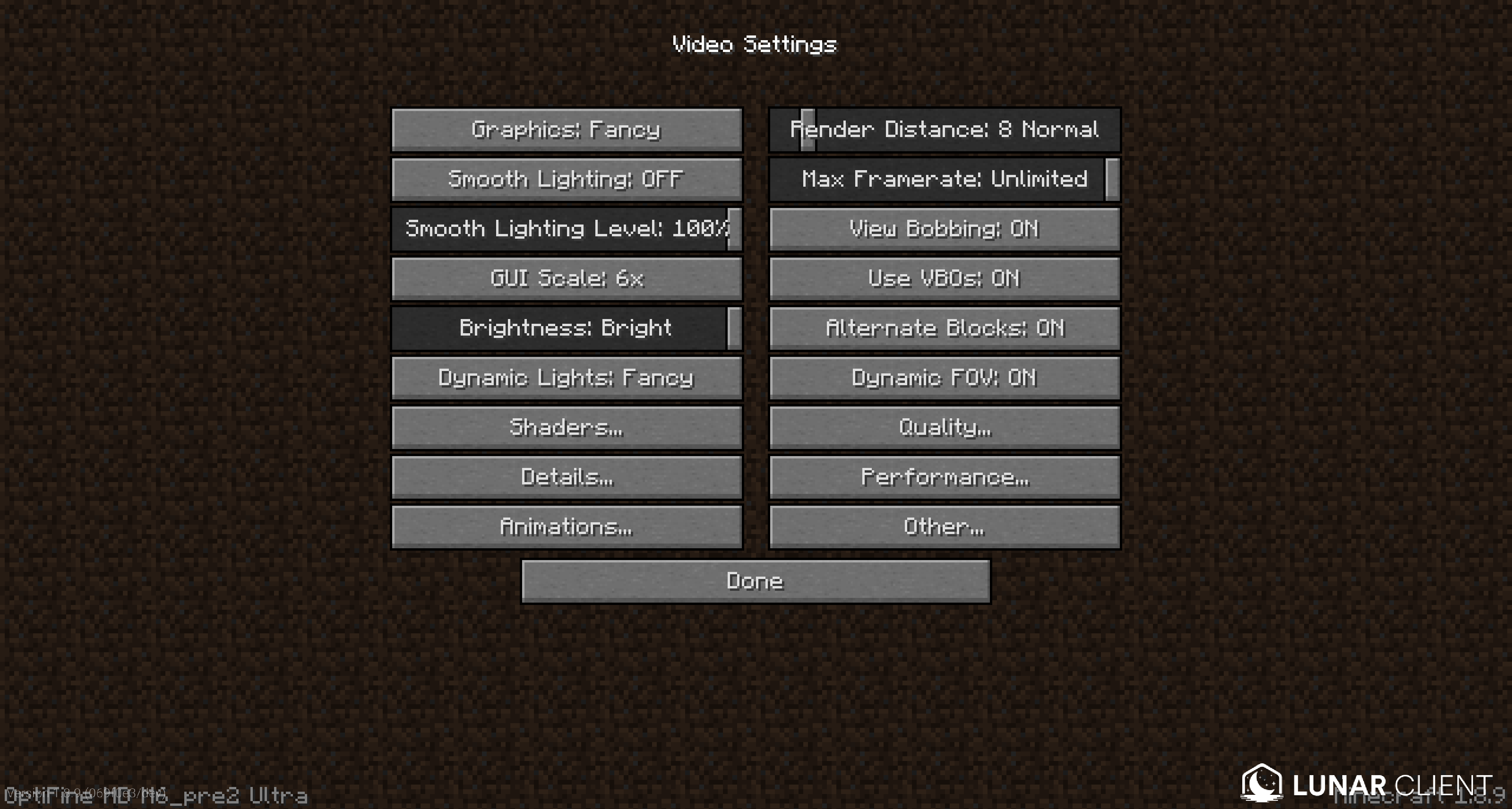
Video Settings (main screen)
- Graphics = Fast
- Smooth Lighting = Off
- Render Distance = 2-8 chunks (lower is faster)
- Max Framerate = Unlimited (or cap it, see Cap your FPS below)
- Use VBOs= ON
- In newer versions, VBOs are enabled by default and can't be disabled.
Performance tab
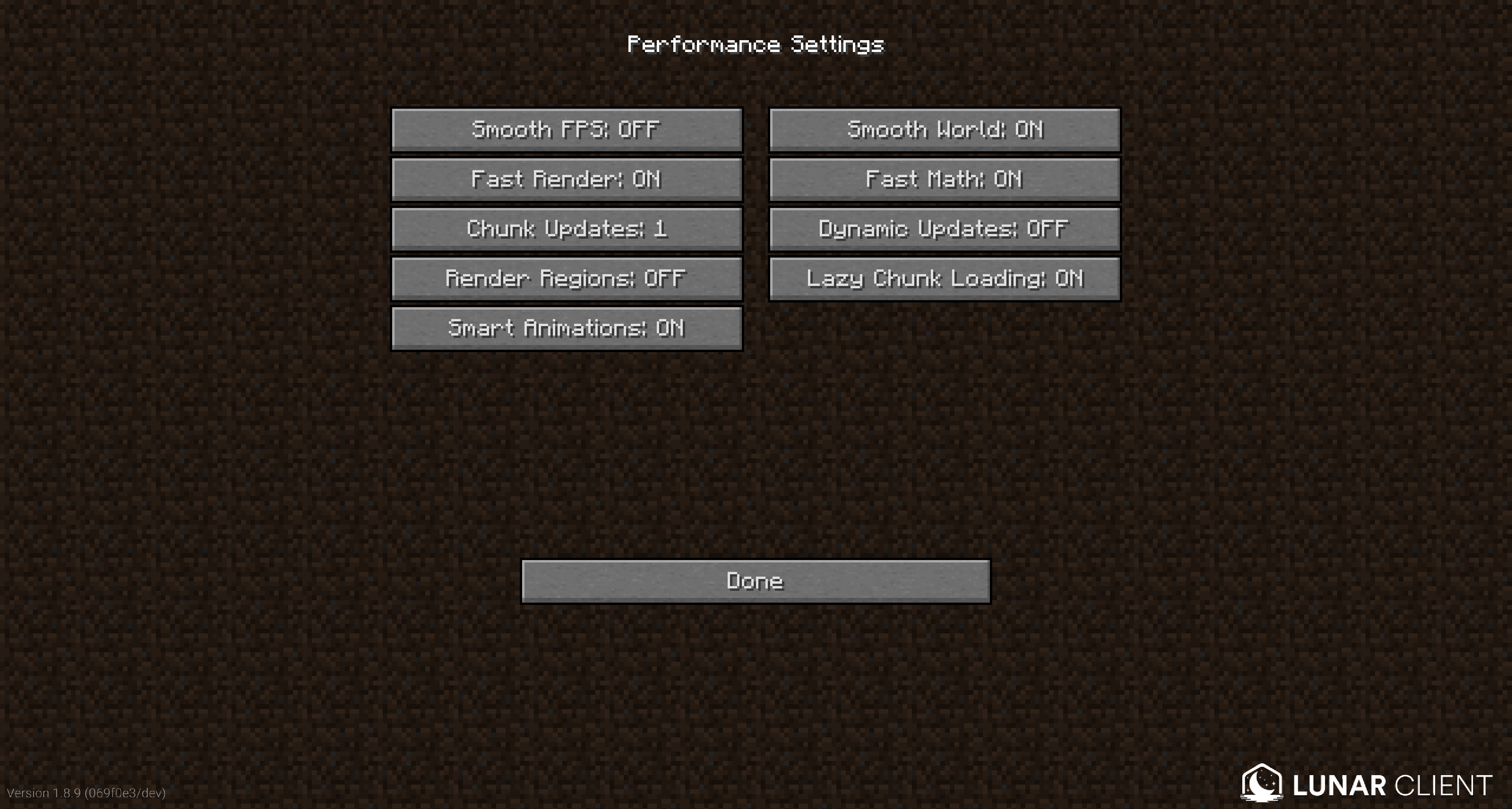
- Smooth FPS = OFF
- Fast Render= ON
- On 1.7-1.12, this disables shaders such as Motion Blur, Menu Blur, and Color Saturation.
- Fast Math = ON
- Chunk Updates = 1 (lower = smoother/less stutter; higher loads chunks faster but causes more hitching)
- Dynamic Updates = OFF
- Render Regions= ON
- Set to OFF if you're on integrated graphics, including Apple silicon.
- Lazy Chunk Loading = ON (default)
Quality tab
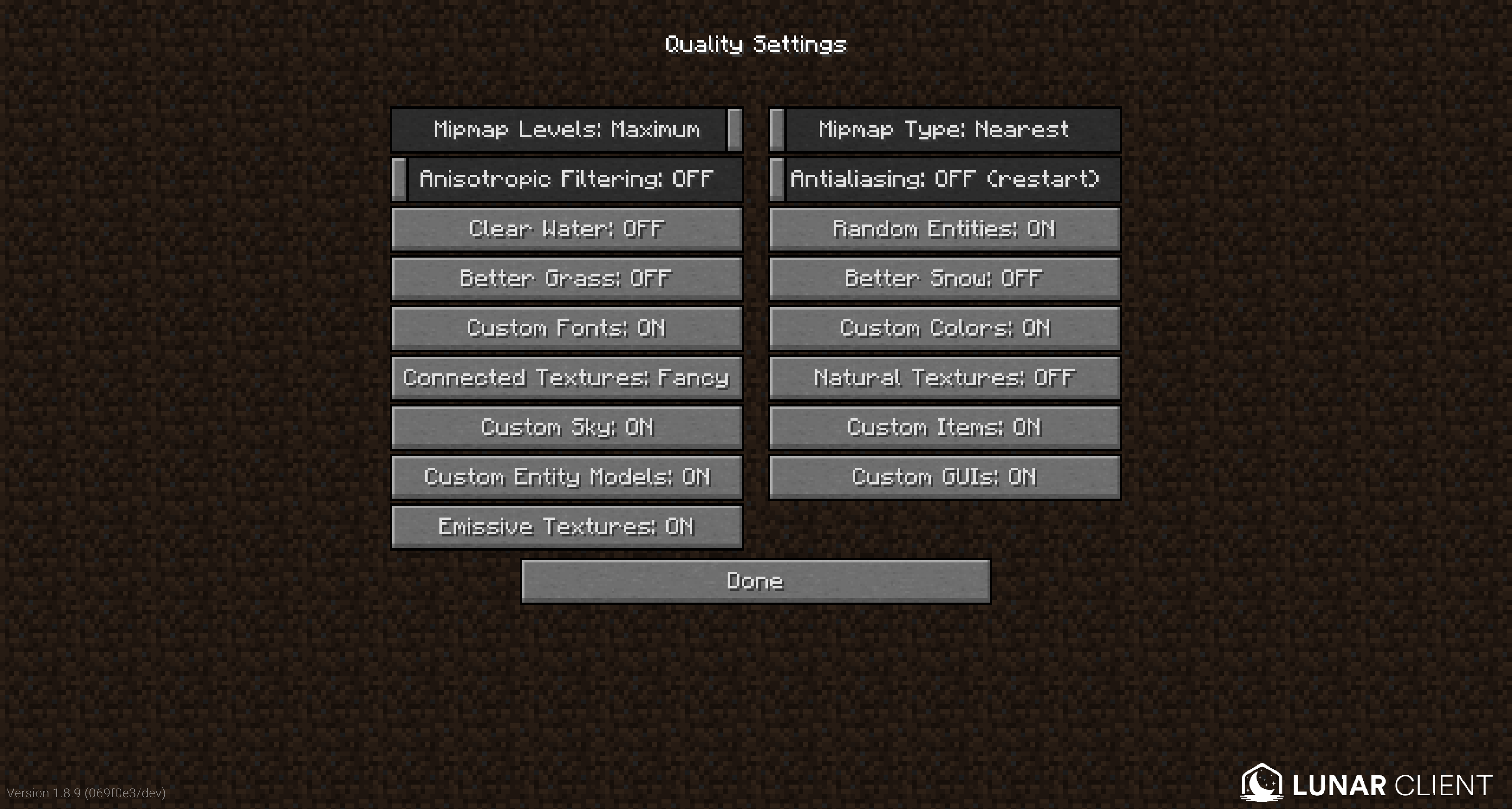
- Antialiasing = OFF
- Anisotropic Filtering = OFF
Details and Animations tabs
These are mostly preferences. In Details, turning off things like rain, sky, and stars gives a small boost. In Animations, disabling animations you don't care about (water, lava, fire, particles, and so on) can help on lower-end machines. Disable whatever you deem unnecessary.
Sodium (newer versions)
Sodium is the go-to performance mod on modern versions (1.16-26.2). It completely replaces Minecraft's rendering engine and generally gives higher, more stable FPS than OptiFine on newer versions.
Open ESC → Options → Video Settings. The menu has three pages: General, Quality, and Performance.
Sodium labels each option with a performance impact (Low, Medium, or High). Focus on the High-impact ones; the Low ones mostly change looks, not FPS.
Heads up: If a setting below is named slightly differently or lives under a different tab in your version, look for the closest match. The recommended value still applies.
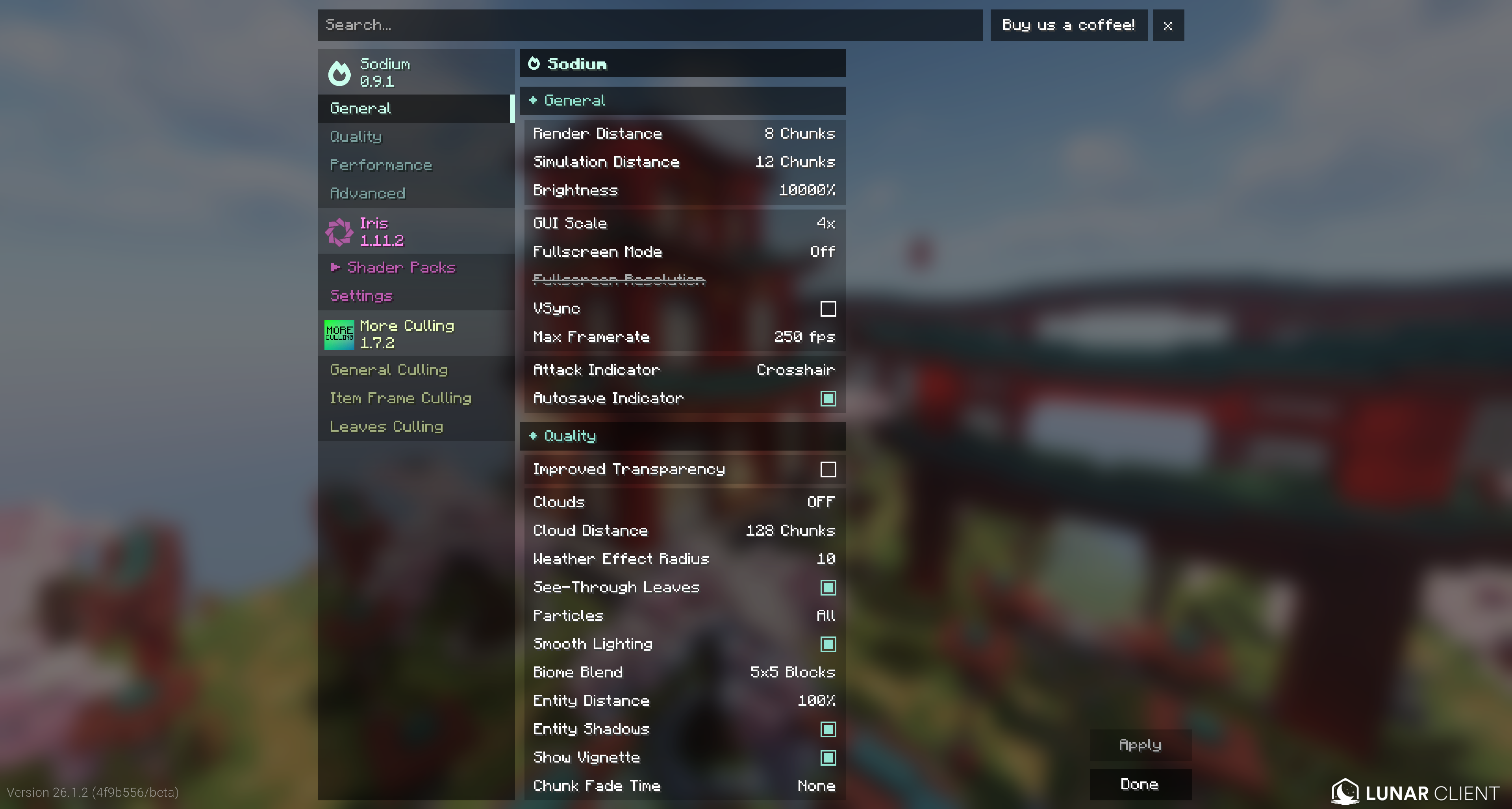
General tab
- Render Distance = 4-6 (High). The biggest single FPS lever, capped by the server on multiplayer.
- Simulation Distance = 4-6 (High). Keep at or below render distance.
- Mostly matters in singleplayer; on servers, the server controls it, so it barely helps your FPS.
- Fullscreen Mode = Exclusive or Off (High). Avoid Borderless; Sodium warns it hurts performance.
- VSync = OFF. Caps FPS to your refresh rate and adds input latency.
- Max Framerate = Unlimited. Or cap it for steadier frametimes; ignored while VSync is on.
Quality tab
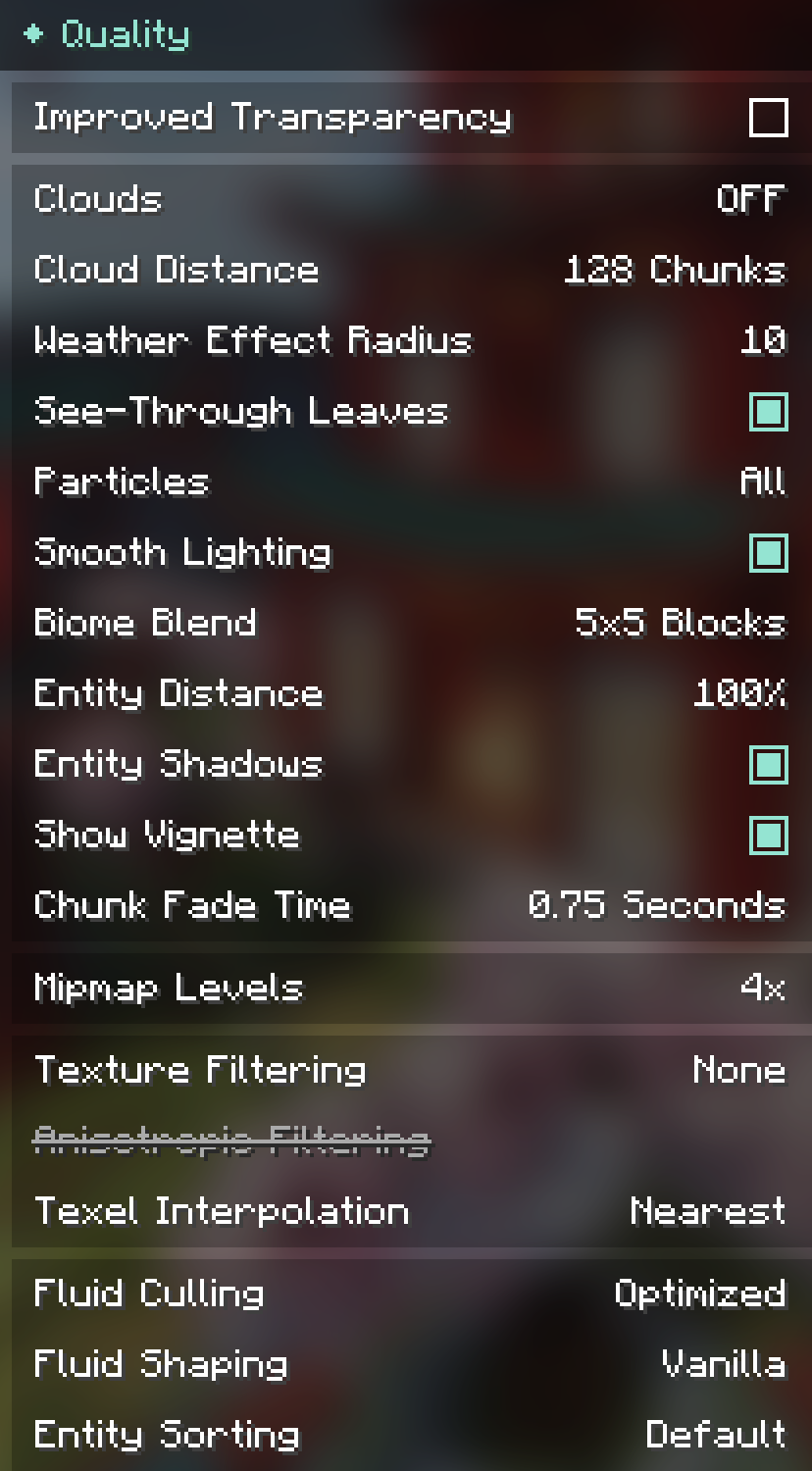
- Improved Transparency = OFF (High). Replaces the old Fast/Fancy/Fabulous dropdown; on is costly.
- See-Through Leaves = OFF (Medium). Off makes leaves opaque, which is cheaper.
- Particles = Minimal (Medium).
- Entity Distance = 75% (High). Big win in crowds and on busy servers. Increase if people far away don't show up when you want them to.
- Entity Shadows = OFF (Medium).
Performance tab
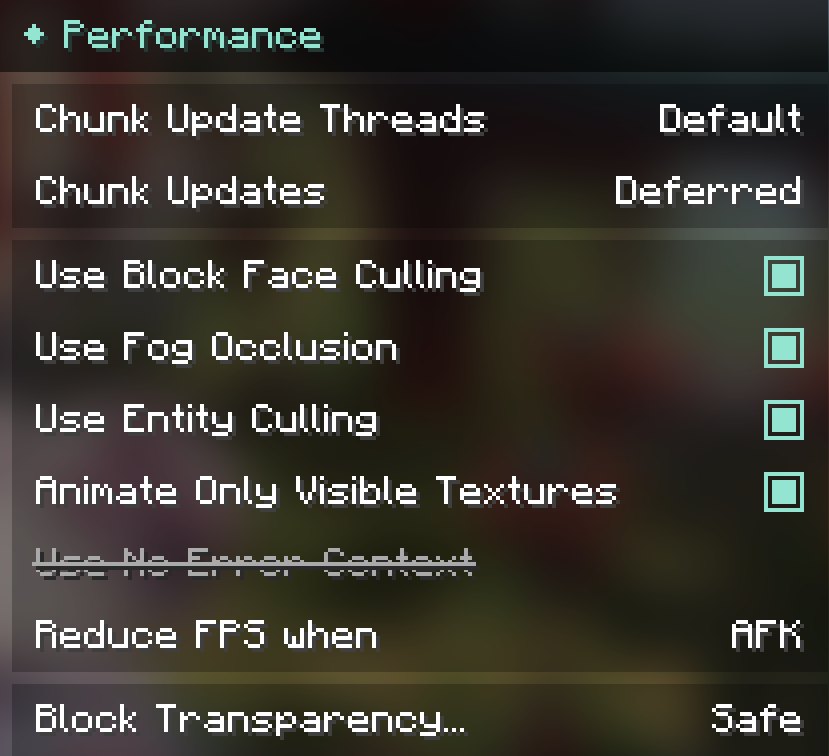
These ship tuned for speed, so leave them ON.
- Chunk Update Threads = Default (High). More threads load faster but can hurt frame times.
- Chunk Updates = Deferred (High). Best FPS with some block pop-in; Immediate removes pop-in but costs FPS.
- Use Block Face Culling / Fog Occlusion / Entity Culling = ON (Medium).
- Animate Only Visible Textures = ON (High). Big win with heavy resource packs.
- Block Transparency = Safe (Medium).
Try the Vulkan graphics API (26.2+)
On Minecraft 26.2 and newer, you can switch Minecraft’s Graphics API from OpenGL to Vulkan. Vulkan is a newer rendering API, and on the right hardware, it can give you a noticeable FPS boost over OpenGL, especially in busy scenes. To switch, set your Graphics API to Vulkan in the Video Settings (a restart is needed for it to take effect).
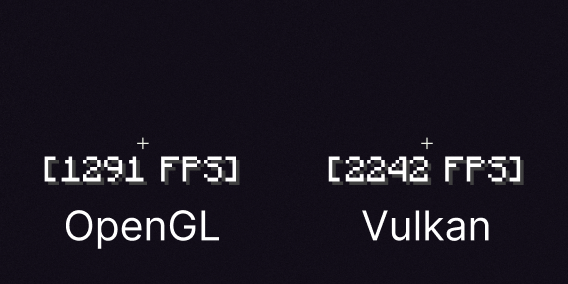
It won't help everyone. The size of the gain depends heavily on your graphics card:
- Newer dedicated GPUs are the most likely to see a solid improvement.
- Much older cards may see little to no gain, and in some cases, run worse than on OpenGL.
- Integrated graphics (Intel Graphics or AMD Radeon on Laptops) may not benefit and can also perform worse. Do your own testing!
Because results vary so much, treat it as an experiment: switch to Vulkan, play for a bit, and compare your FPS and frametime stability against OpenGL. If it feels worse, switch back.
Lunar Client Performance Settings
These settings apply no matter which video module you're using. Open the mods menu (Right Shift) > Mods > Settings > Performance.
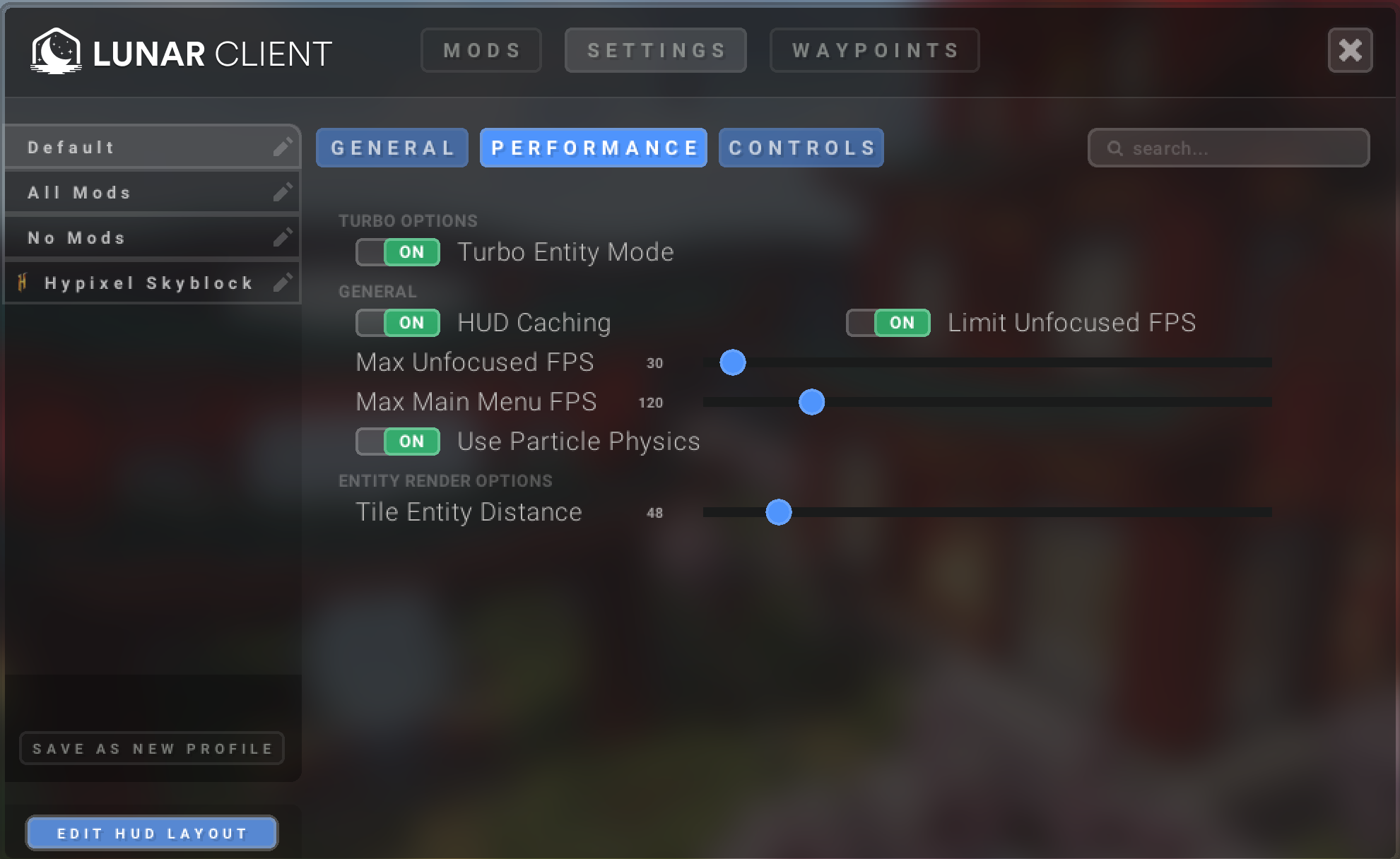
Which options appear depends on your version and whether you're on OptiFine or a Fabric profile, so don't worry if something below isn't in your list; it just doesn't apply to your setup. Recommended values for the biggest FPS gain:
On every version
- HUD Caching = ON (default). Redraws your HUD far less often. Leave it on. On OptiFine this needs Fast Render turned OFF to work.
- Use Particle Physics = OFF (default). Skips particle collision checks. Leave it off.
- Max Unfocused FPS = ON (default). Caps FPS when the game isn't the active window, so it doesn't waste your resources while you're tabbed out.
- Max Main Menu FPS caps FPS in the main menu. Lowering it (e.g. to 60) keeps your GPU quieter and cooler while you sit in a menu.
Legacy versions (1.7-1.12 / OptiFine)
- Lazy Chunk Loading = Medium. Spreads chunk building across more ticks for the biggest FPS boost; the trade-off is chunks load in a little slower. Set it higher if you'd rather chunks appear faster. Modern versions build chunks this way on their own, so it only shows up on legacy.
- Entities = Lowest. Stops distant players and mobs from rendering, a big win on crowded servers. Raise it if people don't appear from as far as you'd like. On modern versions, use Minecraft's own Entity Distance slider instead.
- Tile Entities = Lowest. Culls distant chests, skulls, banners, and the like. Only affects 1.7-1.12. On 1.16+, the slider still appears but does nothing, so don't rely on it for FPS there.
- Render Regions = ON. Batches chunk rendering into larger regions; requires OptiFine.
- Turbo Nametags = ON. Faster nametag rendering (1.8 only).
Newer versions (1.16+)
- Turbo Entity Mode = ON (default). Lunar's faster entity renderer. Leave it on.
- Fast Present = ON (default). Only appears on 26.2+ with Vulkan on supported GPUs.
- Memory Savings = ON (default). Hand unused RAM back to your system to reduce stutter. Only available on Windows and not an option on 26.1+
Allocated RAM
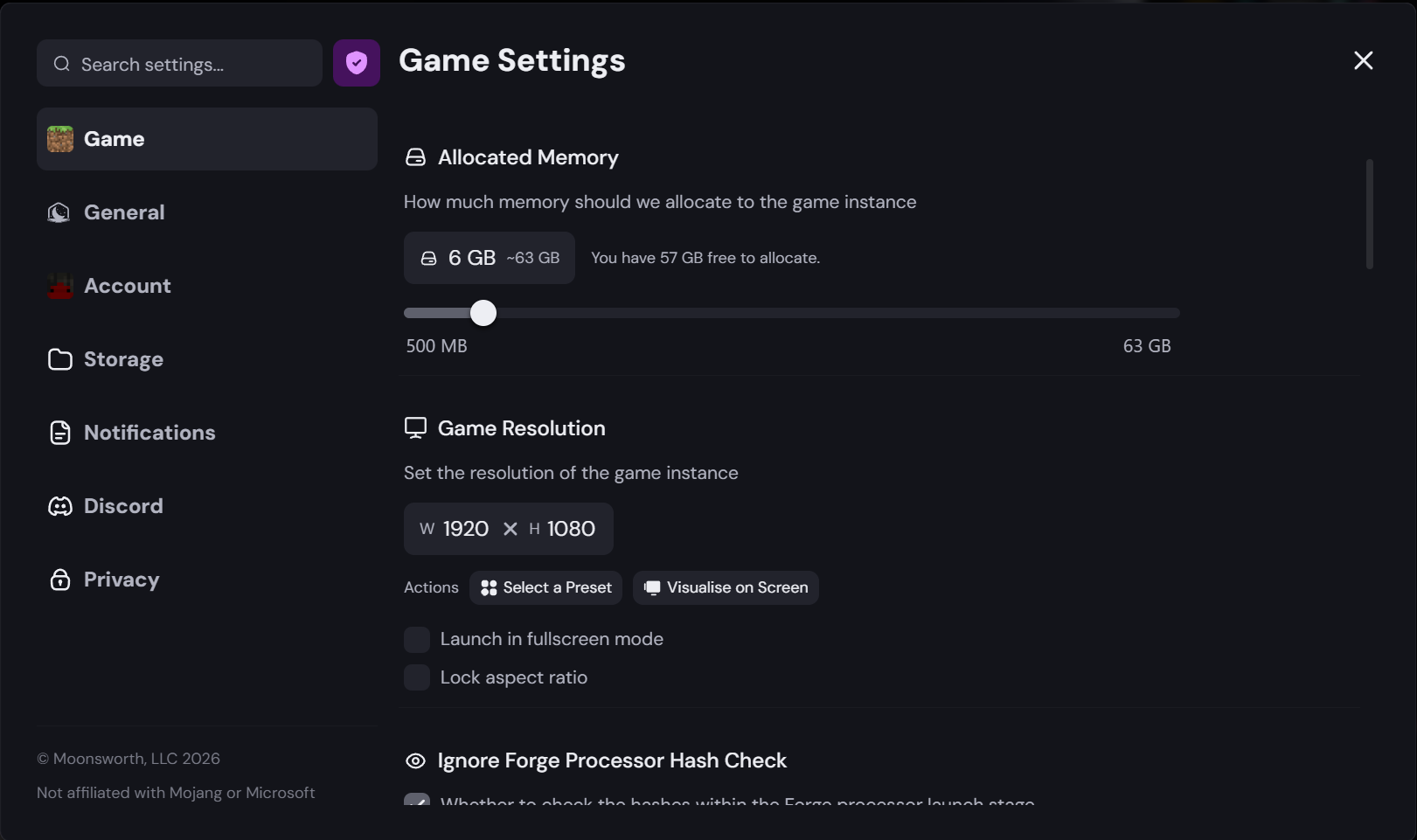
In the launcher, you can change how much memory is allocated to the client under the Settings tab. More is not better. Allocating too much causes Java's garbage collector to pause longer, which can lead to stutters and even crashes.
Recommended amounts:
- 3 GB if you have 8 GB of total system RAM
- 4 GB if you have 16 GB of total system RAM
- 6 GB if you have 32 GB of total system RAM or more
There's rarely any reason to go above 6 GB for a standard Lunar setup. If you're running heavy resource packs or a modpack, you might go a little higher, but don't allocate more than half of your total system RAM.
Other tips that actually help
These are outside-of-Minecraft changes that we know improve FPS and, just as importantly, frametime stability (how smooth and consistent your FPS feels).
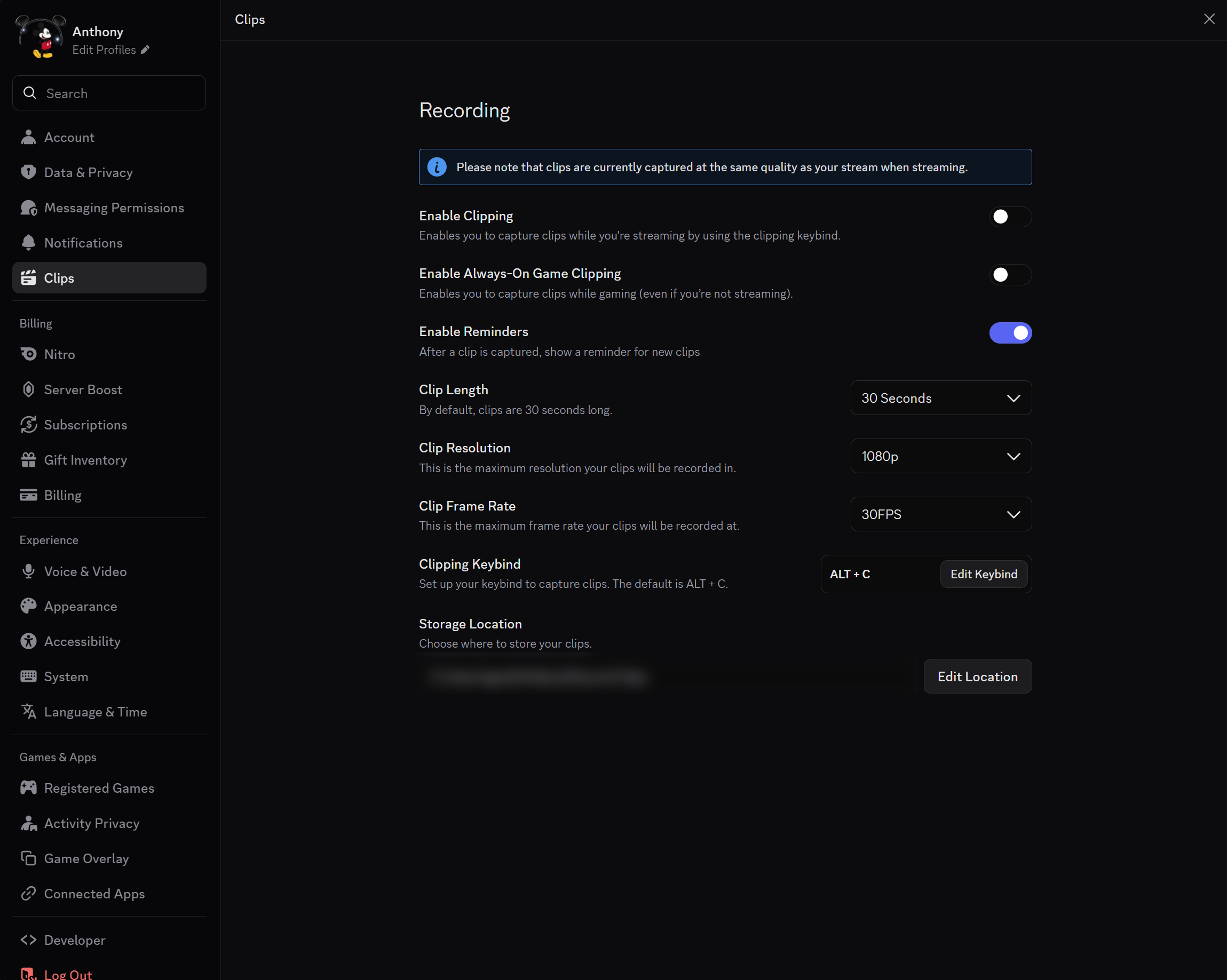
Disable Discord's Always-On Game Clipping
Discord's clip/replay feature has a VRAM leak with OpenGL. While it's enabled, it gradually holds on to more and more of your GPU's VRAM instead of releasing it. Over a long session, this VRAM usage keeps climbing until your GPU runs low, at which point you'll start seeing lag spikes and stutters that get worse the longer you play.
To turn it off: Discord > User Settings (gear icon) > Clips > turn off "Enable Clipping" & "Enable Always-On Game Clipping"
While you're in Discord, two more changes reduce its impact on your game:
- Game Overlay > turn off "Enable Overlay" & "Enable Legacy Overlay." Overlays are injected into the game's rendering pipeline and can cost you FPS.
Update your graphics drivers
Outdated GPU drivers are among the most common causes of stutter, crashes, and uneven frametimes, and Sodium, in particular, relies on modern OpenGL features that older drivers don't handle well. A single driver update fixes a surprising number of "random lag" and crash reports.
- NVIDIA: the NVIDIA app, or nvidia.com/drivers (grab the latest Game Ready driver)
- AMD: AMD Software: Adrenalin Edition, or amd.com/support
- Intel: the Intel Driver & Support Assistant
After updating, restart your PC before testing.
Set your power plan to High Performance
Minecraft's chunk generation comes in bursts that can trip your CPU's power-saving throttle. On Windows, set your power plan to High Performance (Control Panel > Hardware and Sound > Power Options). On a laptop, do this while plugged in and set the Windows power mode slider to Best Performance.
Close background programs
Web browsers (especially Chrome), other launchers, and capture tools all use CPU, RAM, and GPU resources from your game. Before playing, close what you don't need, particularly capture and overlay tools like OBS, NVIDIA ShadowPlay/Highlights, SteelSeries Moments, Overwolf apps, and Medal. Open your Task Manager to see what's using up your resources!
Lower your mouse polling rate
Most gaming mice ship at 1000 Hz, which can add measurable overhead even on older PCs. Installing your mouse's software and lowering the polling rate to 500 Hz can help.
More in General
How to Create a Lunar Client Profile
Spotting a Malicious Site
Over the past few years there has been a large rise in attempts to obtain accounts through the use of lookalike sites with the assistance…
Reporting Ads on Lunar Client
Lunar Client is designed to enhance the Minecraft experience, offering players a wide range of features to explore and enjoy.
Changing Launcher Stream
Only perform these steps when instructed by a Lunar Client staff member
Uploading Launcher Logs
Learn how to upload your Lunar Client launcher logs when requested by a Lunar Client staff member. Follow these steps to share your Log ID for support.
Early Game Update Delivery
Only perform these steps when instructed by a Lunar Client staff member
© 2026 Moonsworth, LLC