Login to Lunar Client
Changing Launcher Stream
Only perform these steps when instructed by a Lunar Client staff member
Only perform these steps when instructed by a Lunar Client staff member
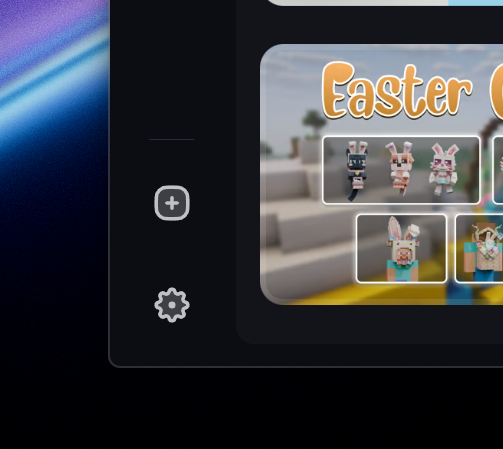
1. Open the Lunar Client launcher and navigate to the Settings page in the bottom left.
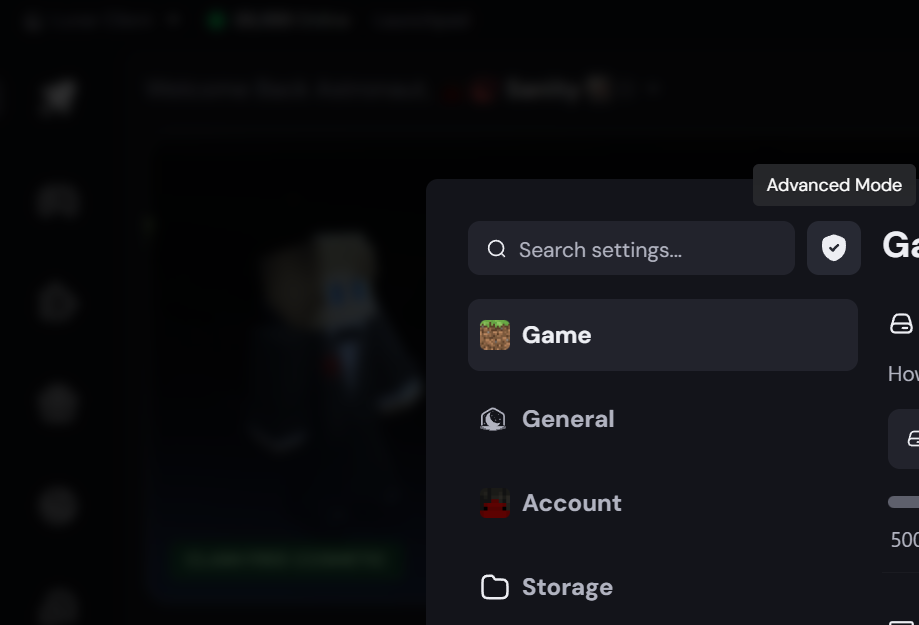
2. Click the shield icon to enable Advanced Mode, if it's not already enabled.
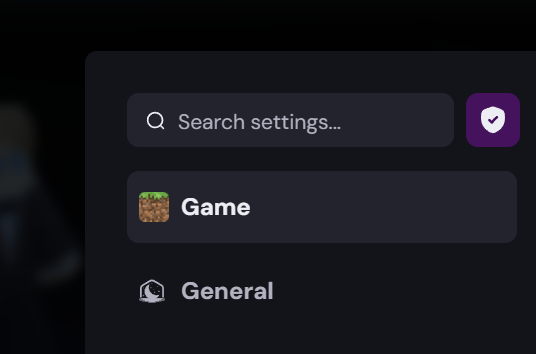
3. The indicator should now be purple, indicating Advanced Mode is enabled. You may now exit the Settings page.
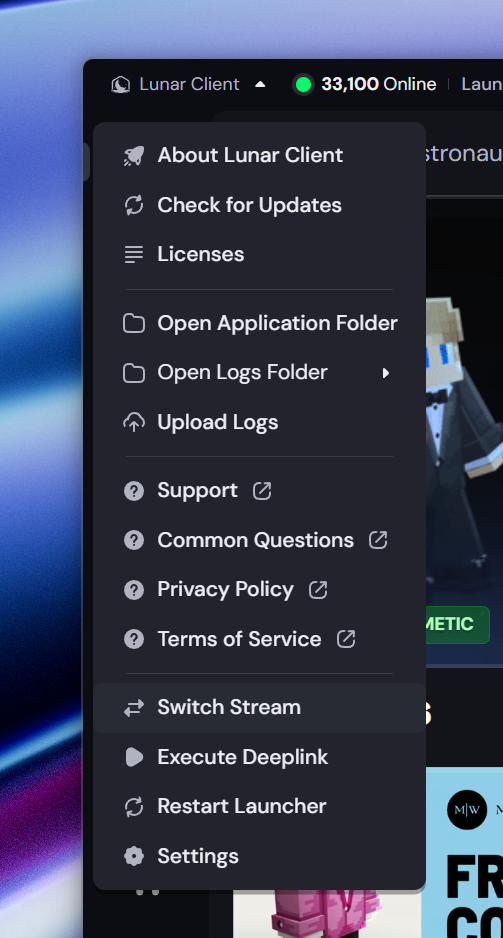
4. Expand the "Lunar Client" dropdown at the top left, and select "Switch Stream".
5. Enter the stream name provided to you by Lunar Client staff in the text box, and select the checkmark to save.
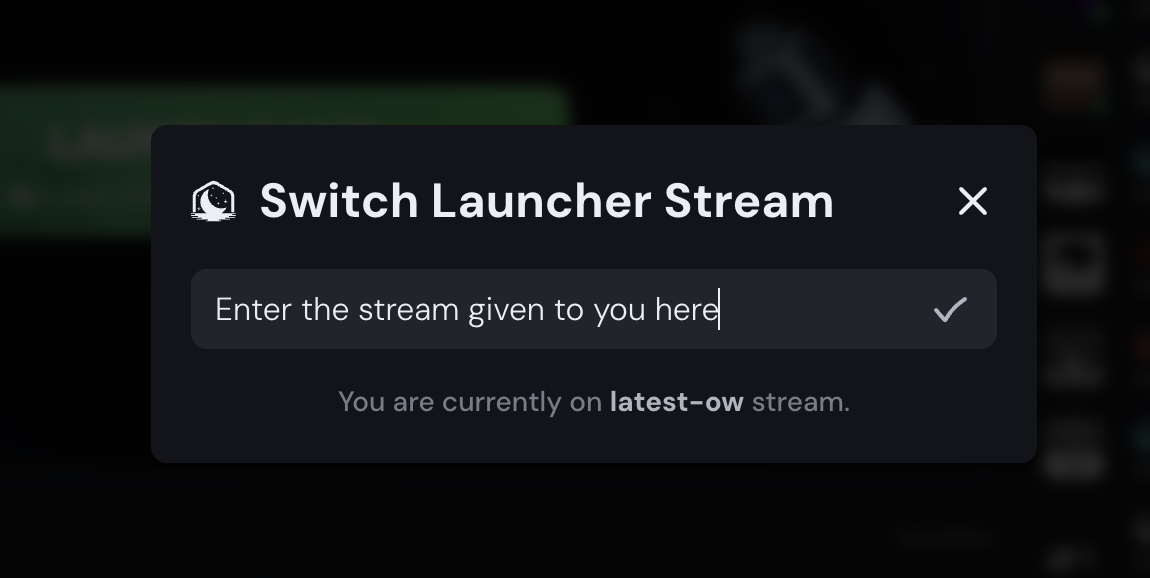
6. You should see a notification at the bottom right of your launcher confirming the stream change.
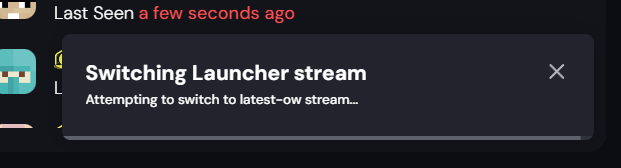
7. Your launcher should now update to a new version, which will help us solve or diagnose whatever issue you're facing.
More in General
How to Create a Lunar Client Profile
Spotting a Malicious Site
Over the past few years there has been a large rise in attempts to obtain accounts through the use of lookalike sites with the assistance…
Reporting Ads on Lunar Client
Lunar Client is designed to enhance the Minecraft experience, offering players a wide range of features to explore and enjoy.
Uploading Launcher Logs
Learn how to upload your Lunar Client launcher logs when requested by a Lunar Client staff member. Follow these steps to share your Log ID for support.
Early Game Update Delivery
Only perform these steps when instructed by a Lunar Client staff member
Changing Game Branch
Only perform these steps when instructed by a Lunar Client staff member
© 2026 Moonsworth, LLC