Login to Lunar Client
Enabling Vanilla Overlay
If you have external mods installed (such as Flashback), enabling Vanilla Overlay will restore the vanilla Minecraft-style buttons so mod…
If you have external mods installed (such as Flashback), enabling Vanilla Overlay will restore the vanilla Minecraft-style buttons so mod menu buttons can appear correctly.
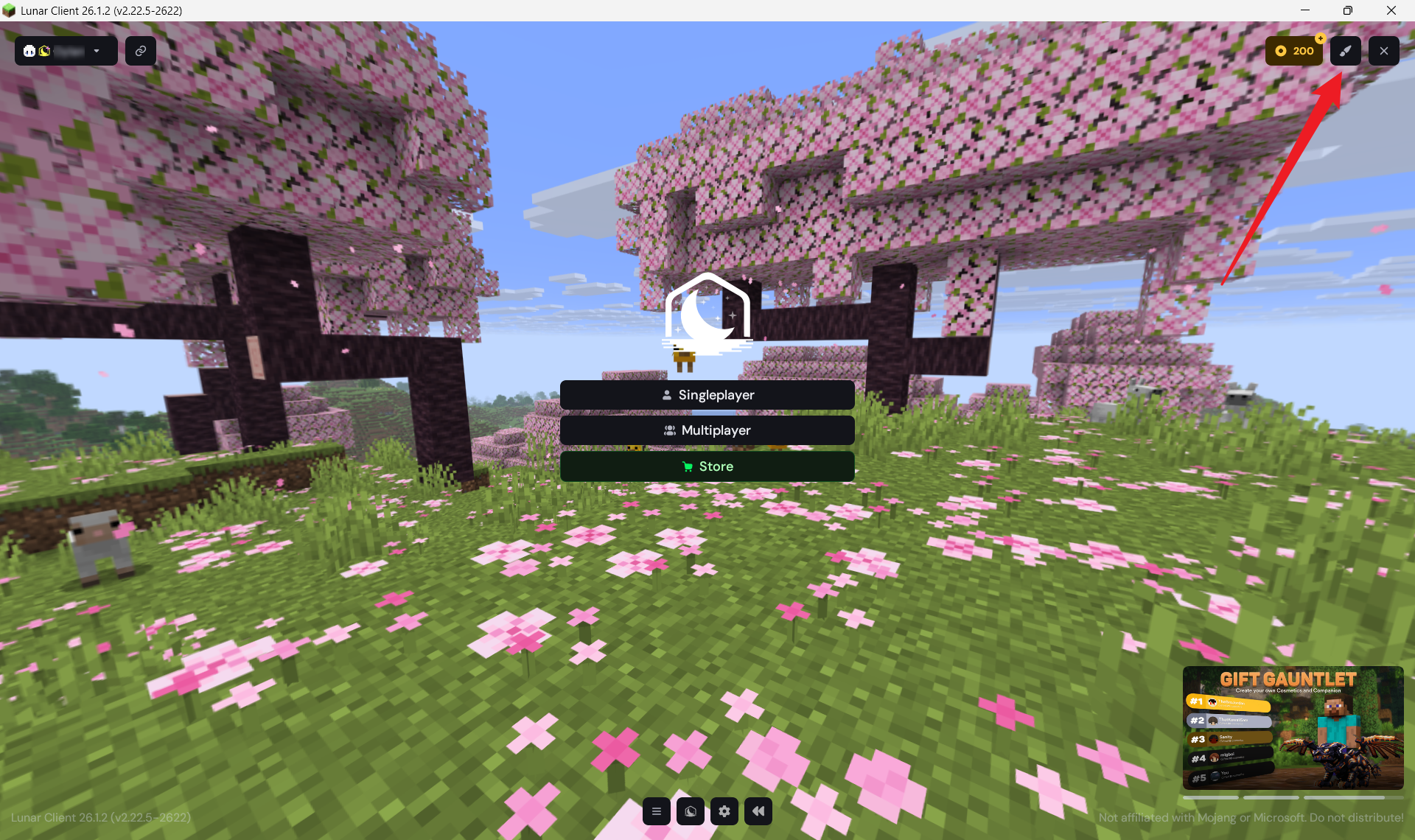
1. From the Lunar Client main menu, click the paintbrush icon in the top-right corner to open the Select Theme menu
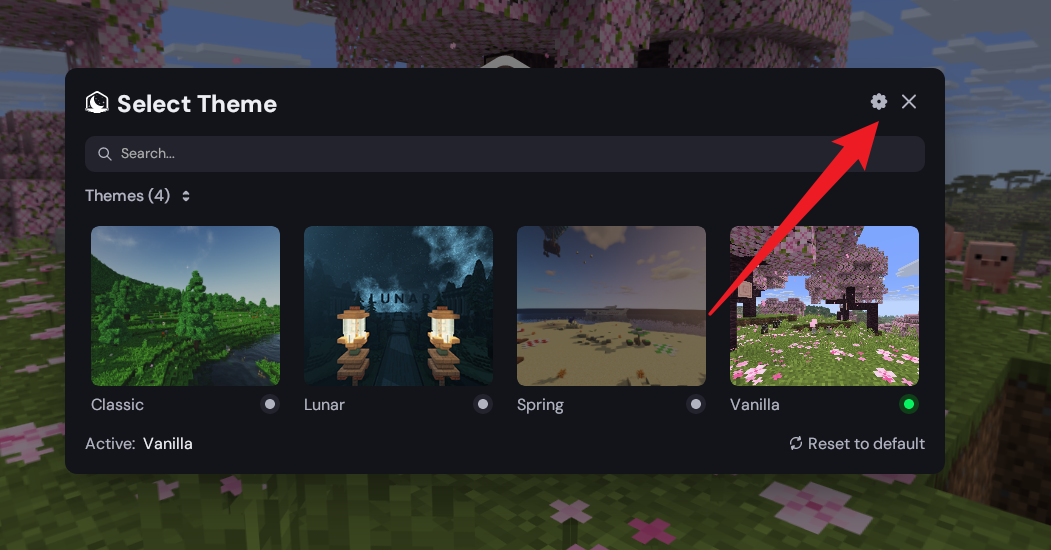
2. Inside the Select Theme menu, click the settings cog in the top-right corner to open Theme Settings.
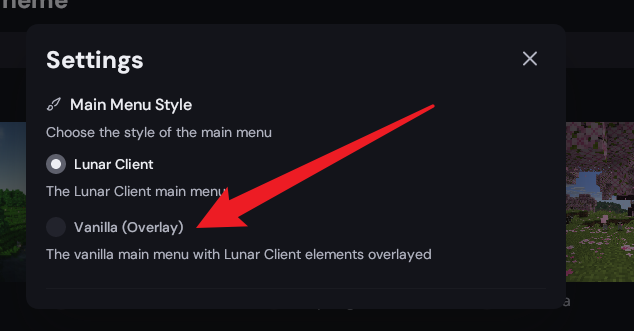
3. Under Main Menu Style, enable “Vanilla (Overlay)”. This keeps Lunar Client features while restoring the vanilla Minecraft menu layout.
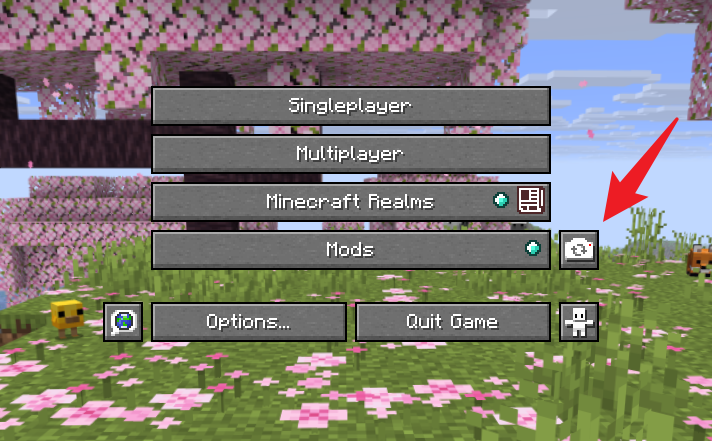
After enabling Vanilla Overlay, mods such as Flashback should now show their buttons on the main menu.
For example, you should see the extra mod/settings button appear beside the normal menu buttons.
More in General
How to Create a Lunar Client Profile
Spotting a Malicious Site
Over the past few years there has been a large rise in attempts to obtain accounts through the use of lookalike sites with the assistance…
Reporting Ads on Lunar Client
Lunar Client is designed to enhance the Minecraft experience, offering players a wide range of features to explore and enjoy.
Changing Launcher Stream
Only perform these steps when instructed by a Lunar Client staff member
Uploading Launcher Logs
Learn how to upload your Lunar Client launcher logs when requested by a Lunar Client staff member. Follow these steps to share your Log ID for support.
Early Game Update Delivery
Only perform these steps when instructed by a Lunar Client staff member
© 2026 Moonsworth, LLC