Login to Lunar Client
How to Cancel your Lunar+ Subscription
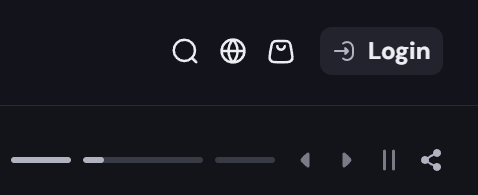
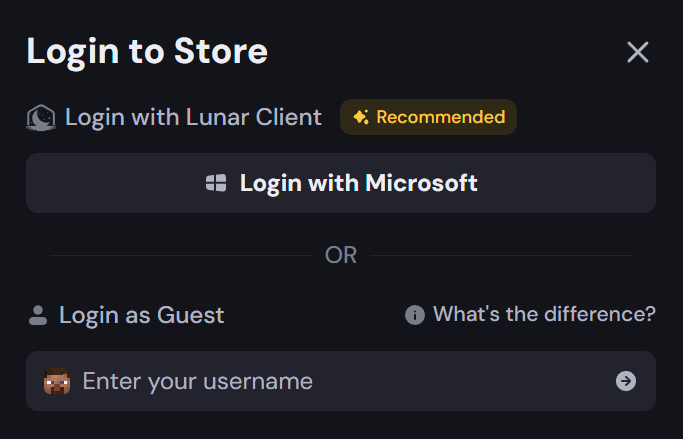
Step 1 – Log in to the store. Head to store.lunarclient.com and click Login at the top right, and Login with Microsoft.
Step 1 – Log in to the store. Head to store.lunarclient.com and click Login at the top right, and Login with Microsoft.
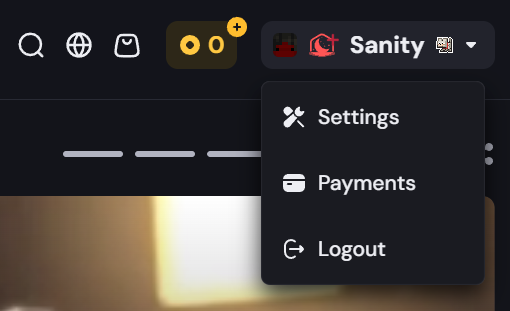
Step 2 – Open your account menu and go to Payments. Once logged in, confirm your username is correct in the top-right corner. Click your name/avatar to open the dropdown menu, then select Payments.
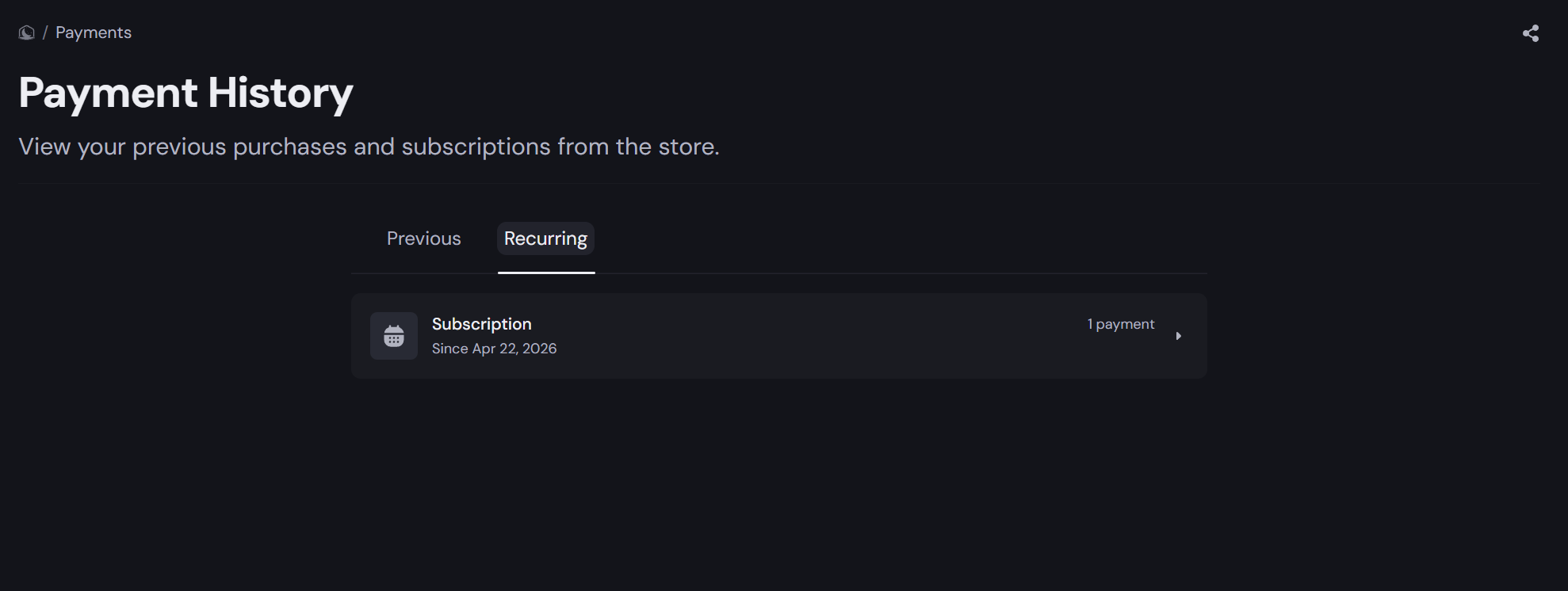
Step 3 – Open your recurring subscription. On the Payment History page, click the Recurring tab. You'll see your active Lunar+ subscription listed. Click on it to view the details.
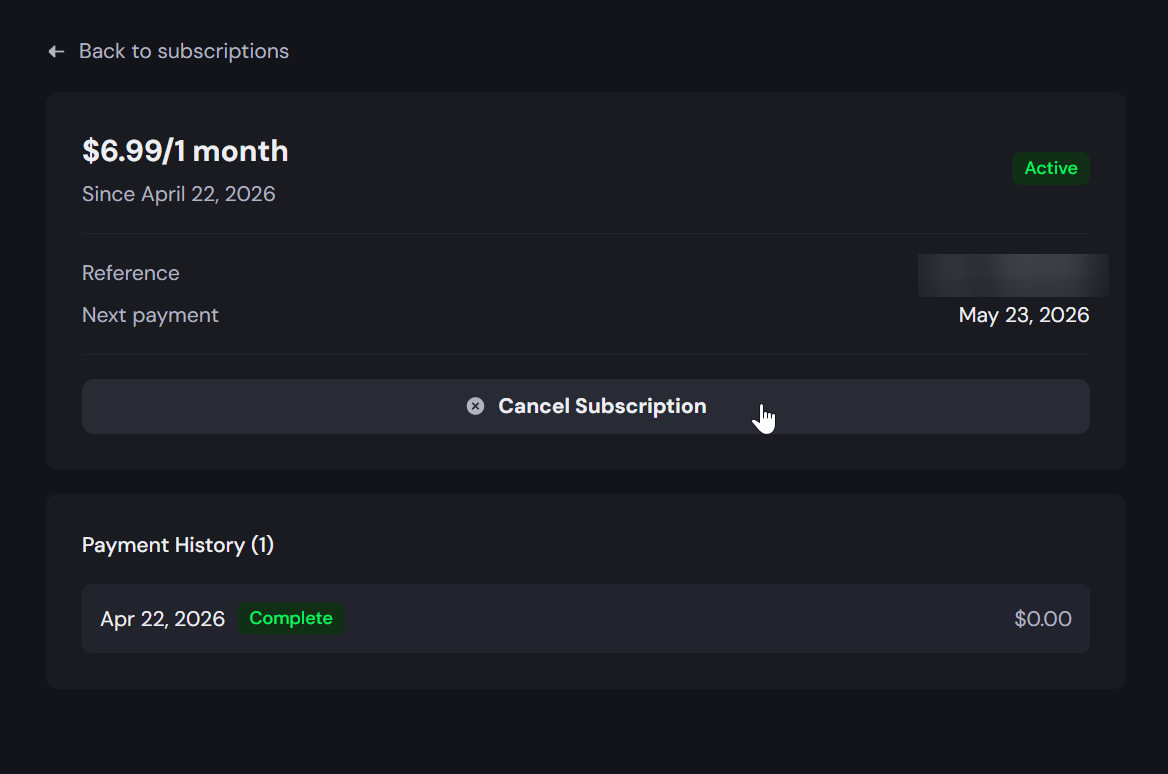
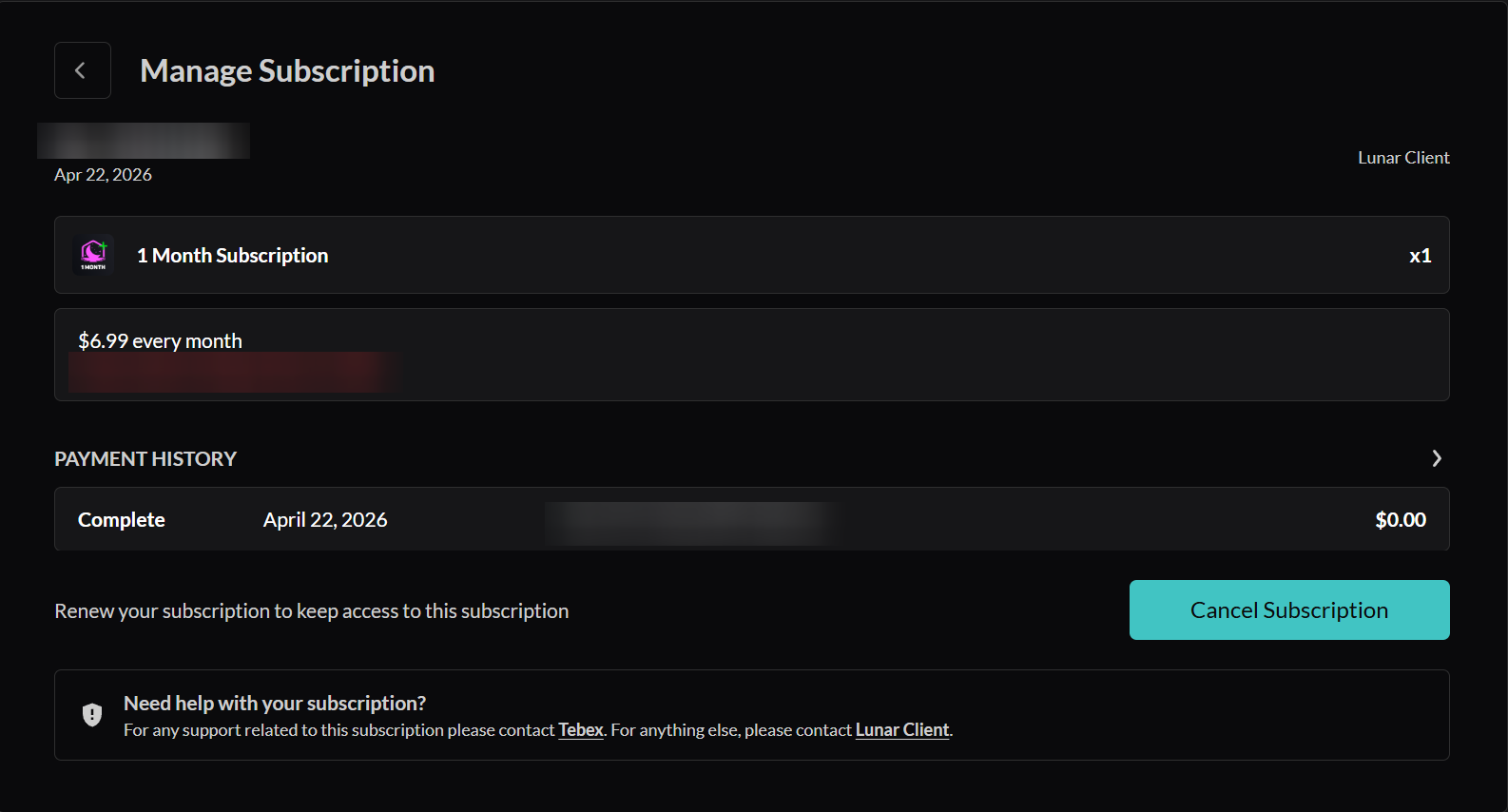
Step 4 – Cancel the subscription. On the subscription detail page, you'll see your billing amount, start date, and next payment date. Click the Cancel Subscription button to stop future charges.
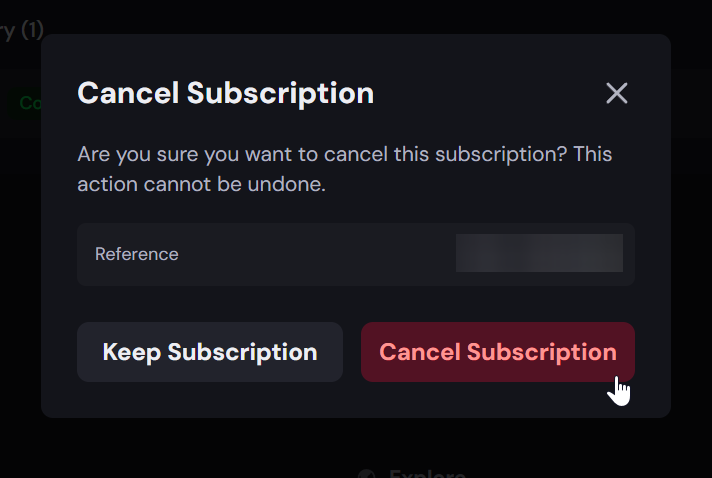
Step 5 – Confirm the cancellation. A confirmation pop-up will appear asking if you're sure you want to cancel. A confirmation pop-up will appear asking if you're sure you want to cancel. Verify the Transaction-ID is correct, then click the red Cancel Subscription button to confirm. If you've changed your mind, click Keep Subscription to go back.
Still having trouble?
Step 1: Head over to the Tebex website
- Please visit the Tebex website here: https://checkout.tebex.io/payment-history
Step 2: Canceling the subscription
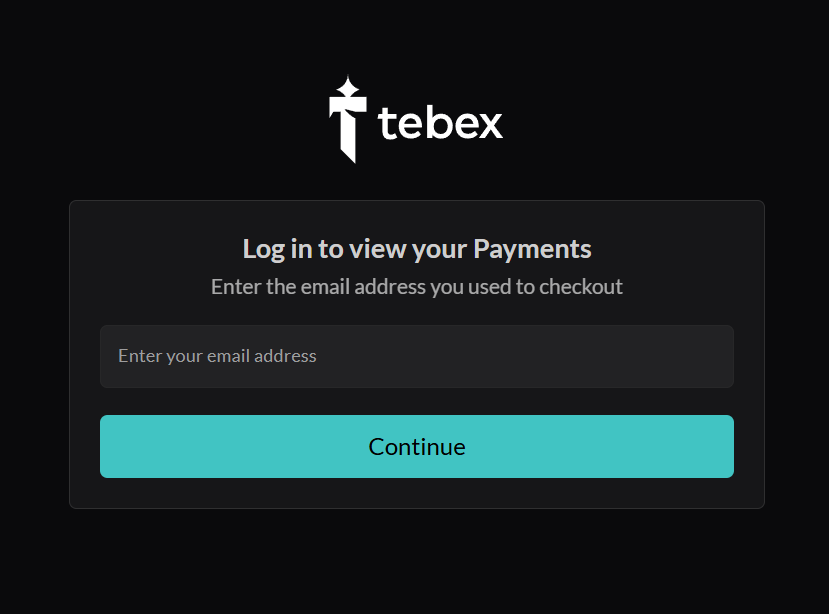
- Login with the email address you used to purchase your Lunar+ subscription.
- Click on your active subscription
- Click the Cancel Subscription button.
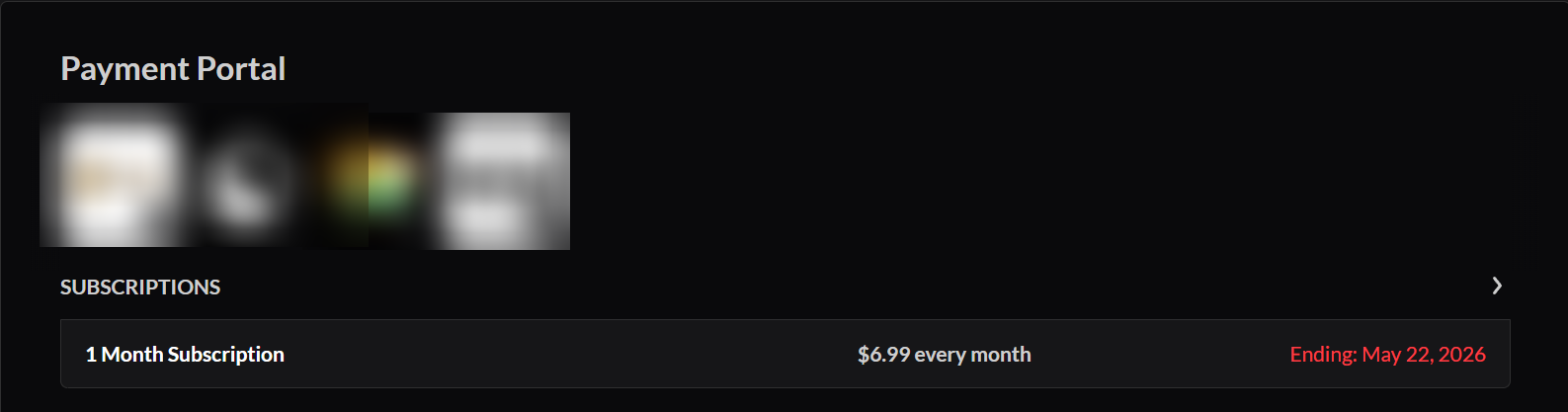
⚠️ Your Lunar+ perks remain active until the end of the current billing period — cancelling stops future renewals only.
© 2026 Moonsworth, LLC